> For the complete documentation index, see [llms.txt](https://docs.blup.in/llms.txt). Markdown versions of documentation pages are available by appending `.md` to page URLs; this page is available as [Markdown](https://docs.blup.in/~/changes/bxpytJQPpsJWb4ZdG6qm/how-to-use-googlemaps.md).
# How to use Google Maps in Blup
Incorporate Google Maps into your Blup application to provide location-based features and services.
Google Maps
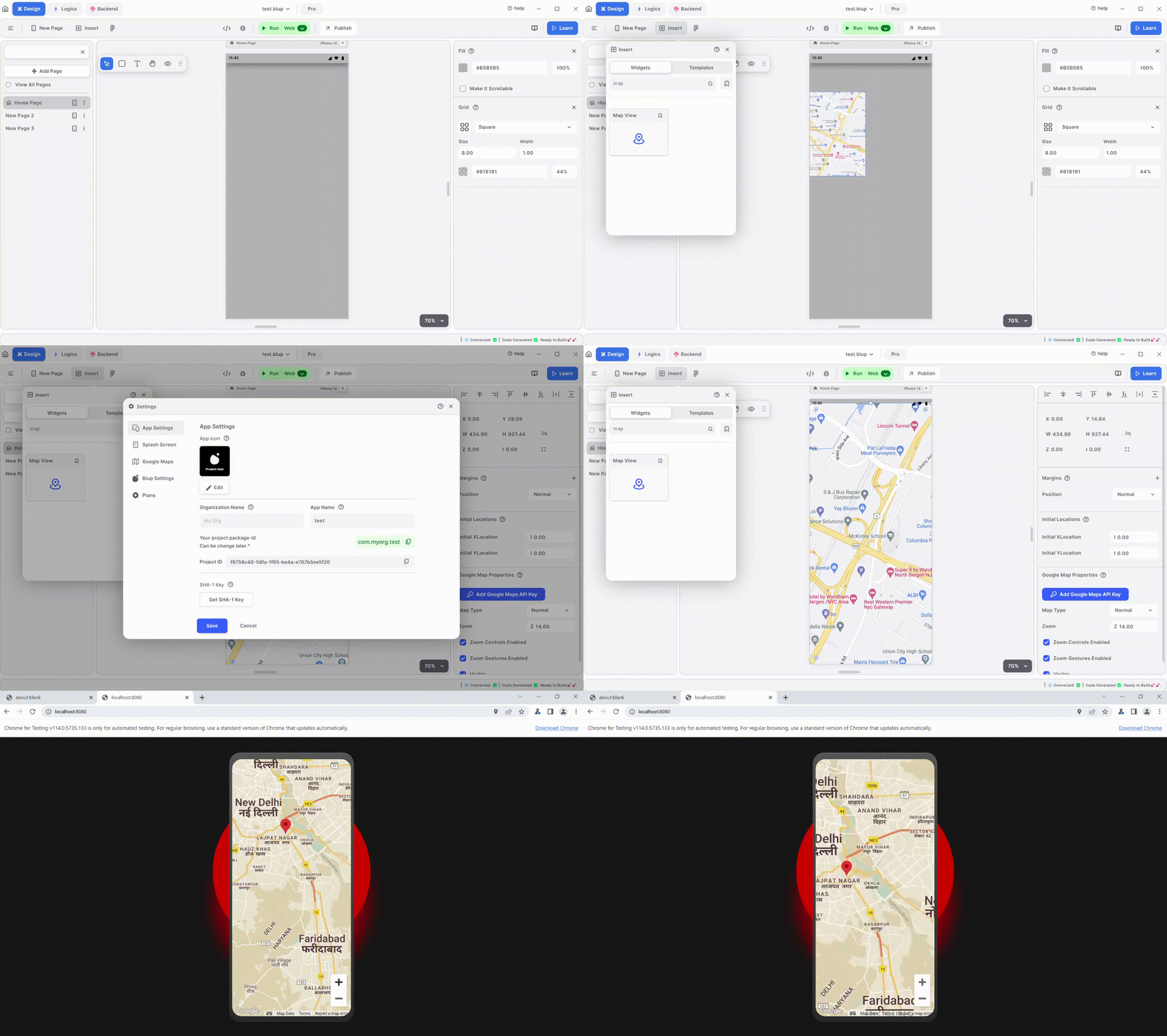
1\. **Get Google Maps API Key:** Obtain an API key from Google Maps for your application.
2\. **Add API Key to App Settings:** Go to the Google Maps API keys section in your app settings and add the API key you obtained.
3\. **Add Map View Widget:** To add a map to your UI screen, go to the Insert tab and choose the Map View widget. You can then adjust its size and where it shows up on the screen. If you need more help, check out the Google Map Component guide [here](https://github.com/BlupGithub/blup-docs/blob/main/wiki/design-ui/insert-widgets/mapview-widget.md).
4\. **Set Initial Coordinates:** Specify the initial coordinates that you want to show when the app starts. This determines the initial position and zoom level of the map.
5\. **Run the App:** Once you've configured the Map View widget, run your app to see the Google Maps integration in action.
{% hint style="info" %} Note: To know how to get Google API key [Click Here](https://developers.google.com/maps/documentation/javascript/get-api-key).
{% endhint %}
If you have any ideas to make Blup better you can share them through our [Discord community channel](https://discord.com/channels/940632966093234176/965313562425823303)
## Music to go with.
{% embed url="" %}
Lofi music
{% endembed %}